Ad Campaigns
- Modules
- Connectors
- Audio
- Calendar
- Clock
- Countdown
- Currencies
- Dashboard
- DataSet
- Embedded
- Emergency Alert
- Flash
- Google Traffic
- HLS
- HTML Package
- Image
- Local Video
- Mastodon
- Menu Board Category
- Menu Board Products
- National Weather Service
- Notifications
- PowerPoint
- Shell Command
- Stocks
- Ticker
- Video
- Video In
- Weather
- Webpage
- World Clock
On this page
Ad Campaigns
Create Advertising Campaigns where Xibo will work out how many plays are needed to satisfy entered criteria and handle the scheduling automatically for you.

Create an Ad Campaign
-
Click on Campaigns under the Design section of the main CMS menu
-
Click the Add Campaign button at the top of the grid
-
Select Ad Campaign from the drop down menu and complete the form fields
-
Give your Ad Campaign a Name for easy identification in the CMS including optional Tags
-
Use the drop down to set the Target Type for this Ad Campaign as Plays, Budget or Impressions
-
Include the total Target number for this Ad Campaign in relation to its selected Target Type
-
Click to Save
Next, criteria needs to be set to allow Xibo to work out the play frequency.
From the grid, use the row menu for the Ad Campaign and select Edit:
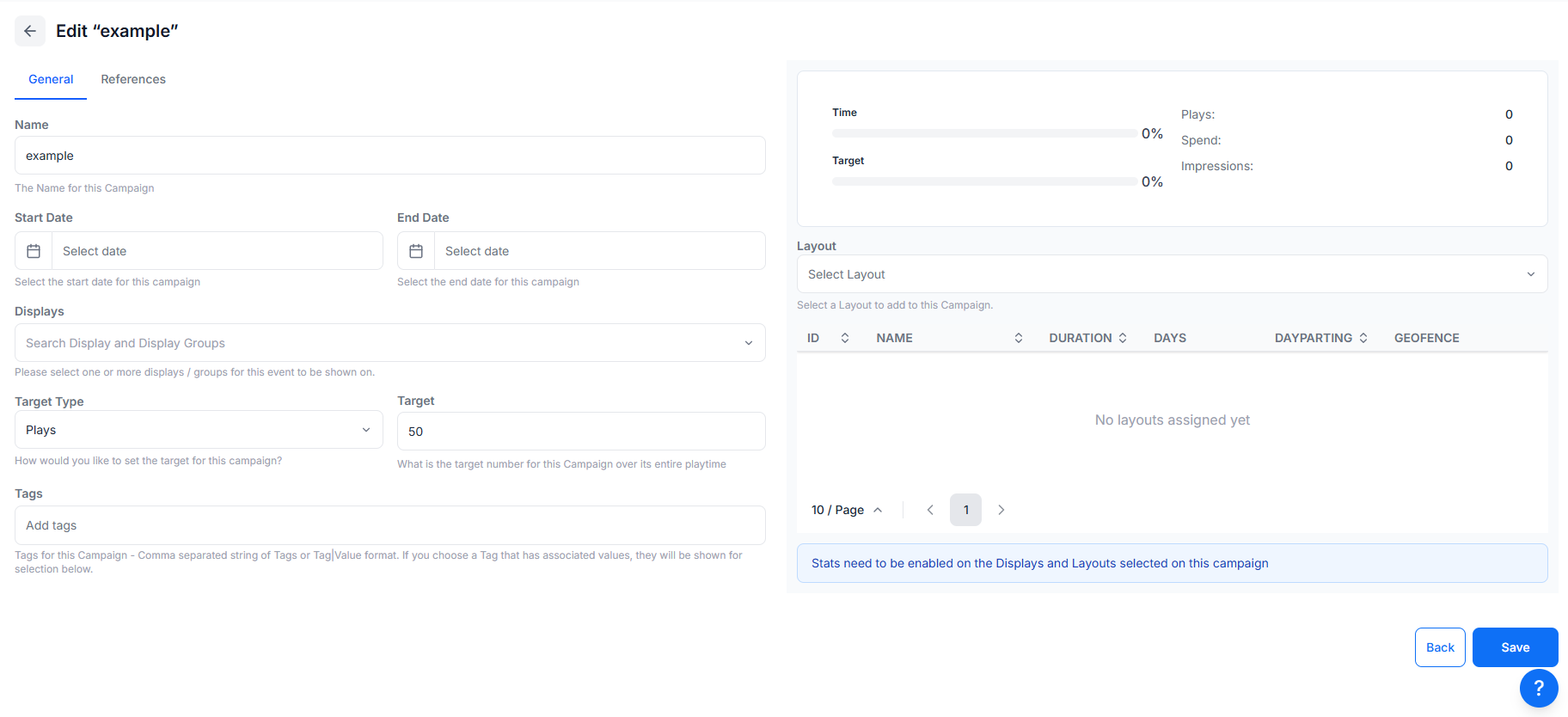
- Provide Start and End Dates and Times for the Ad Campaign. (This is required information and cannot be left blank)
- Select from available Displays and Display Groups to play this Ad Campaign on. (This is required information and cannot be left blank)
- Click to Save
Proof of Play needs to be set to ON for all Displays/Display Groups selected here, to ensure accurate reporting and plays!
- Assign a Layout using the Layout drop down menu.
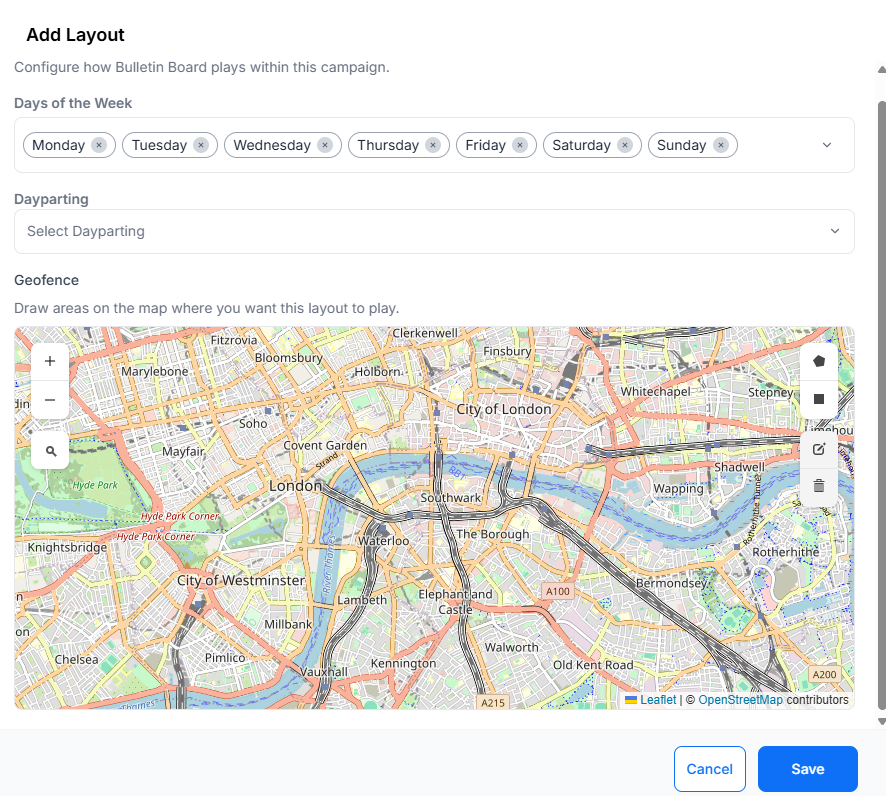
Once a Layout is selected further scheduling options are available:
-
Select which Days of the Week this Layout should be active in this Ad Campaign.
-
Choose from existing Dayparts if this Layout is only to be shown at selected predefined times.
For example, If you needed to show the same Layout for a defined ‘Morning’ daypart as well as a defined ‘Evening’ daypart add the Layout twice and define the required dayparts individually for each!
- Draw areas on the map to provide geo fenced based plays for any mobile displays, with content to be shown on entering a defined area.
- Click to Save.
The Layout will be added to the Campaign which can be edited/deleted if required using the row menu:
Continue to build your Ad Campaign by selecting Layouts and defining scheduling options.
Xibo will schedule automatically to fulfil the required play criteria to meet entered Targets.
Ad Campaigns can be viewed on the Schedule as locked entries which cannot be edited from the scheduler itself.
Agenda can be used to see a more detailed play view of the Ad Campaign and preview included Layouts.
The Ad Campaign progress will be shown in the Campaigns grid and on opening the Ad Campaign, providing that Proof of Play has been set to ON for all Displays and Layouts selected for the Campaign. As well as Cost per play and Impressions per play fields are completed for all selected Displays.