My scheduled Layouts are not working?
- Xibo for Android
- DSDevices DSCS9X/95 Set-up Guide
- Install a White Label or a different Player version on DSDevices
- CEC Screen Power on/off with DSDevices
- Hardware Recommendations
- Philips Signage SoC Monitors
- Sony Bravia SoC
- Hisense Commercial Displays SoC
- Managing Storage on the Android Device
- Player Settings
- Players without an Internet Connection
- Remote Administration with SS Helper
- Restart Rooted Device with a Shell Command
- Running Xibo for Android
- Resolving Common Issues
- Error shown when I try to licence my Player?
- Player not updating from the CMS?
- I can see my Licence entry but the Player appears unlicensed?
- Error message - Player is missing dependencies
- My scheduled Layouts are not working?
- Layout won't play? Splash screen plays?
- Watchdog error message
- Troubleshooting for Administrators
- Audit Trail
- Log Information
- Player Logs
- Getting the Player Status
- Request Player Status via CMS - Logged in Players only
- Request Player Status directly from a Device
- Can I use the Xibo name / logo?
- Can I run a Xibo Player on Raspberry Pi?
- How can I increase the upload file size limit?
- How do Players communicate with the CMS?
- How many displays can Xibo support?
- How do I reset the Xibo_admin account password?
- Power On/Off for Players
- Why do I need a Default Layout?
- Xibo for Android FAQ's
- Gapless Playback
- Autoplaying Embedded Youtube Videos
- Closing to Home screen
- Displaying Images
- Embedded TV
- External SD card not listed when running Banana-Pi
- Helper Command to change Time zone
- HTML5 Video
- Memory Notifications
- Menu not accessible
- SSL Support
- Using Portrait Displays
- Video wont play properly
On this page
Our documentation is moving to a new home at docs.xibosignage.com as we make some improvements. Go check out the enhanced search features and visit our brand new knowledge base. The move for developer and administration docs will be happening over the next few weeks as we keep building things out for you.
My scheduled Layouts are not working?
Problem:
Layouts are not being shown as per their schedule
Cause:
A Layout must meet the following criteria before it will be added to a Schedule:
- It must be completely downloaded
- All dependent resources must be downloaded
- None of the dependent resources are in the blacklist
- It is in its Scheduled window (from date/time and to date/time)
- If there are any other Priority Layouts, it must be the same or higher Priority
- The Layout can be parsed and doesn’t contain any invalid items, such as empty Regions
- If none of the above is true, the Default Layout is tested against criteria 1 to 3.
- If the Default Layout cannot be played the splash screen is shown.
Failing Test 6
Test 6 can be failed in 2 ways:
- Minor fail - the Layout is removed from the Schedule until the next time the Player checks its Schedule with the server.
- Major fail - some Media files on the Layout will be blacklisted and will remain blacklisted until the Player is restarted.
Solution:
Long running Layouts
The most common cause for a Layout Schedule to be “missed” is that the current running Layout is still in the Schedule and contains a long-running Media item (items with a high duration). This Layout will need to finish before the new Layout can start.
The following is suggested to check against criteria 1- 6:
-
Criteria 1 and 2 - use the Player Status Screen - CMS Status and check the entry for Required Files. More specific information regarding missing resources / files can be checked using the Manage page for that Display in the CMS.
-
Criteria 3 - use the Player Status Screen and check the entry for Blacklist. This will list the Media ID and Media format.
Please note: Blacklisted media entries are not available on the Windows Player Status Screen.
-
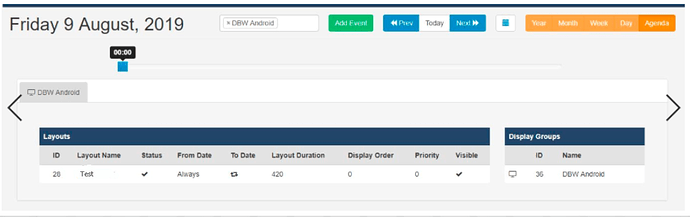
Criteria 4 and 5 - check the Agenda View and / or ‘Edit Event’ and check form fields are as expected.
Criteria 6 - Use the Player Logs to identify invalid Media files and empty Regions.
Further Info:
The Status Screen also provides “Schedule Status” indicators which contain lists of Layout ID’s (as seen in the CMS):
- All Layouts - All Layouts the Player has been informed of, including the Default Layout. Items with a * are not Scheduled.
- Scheduled Layouts - Layouts from “All Layouts” that meet criteria between 1 and 5
- Valid Layouts - Layouts in “Scheduled Layouts” that pass test 6.
- Invalid Layouts - Layouts in “Scheduled Layouts” that fail test 6.